Showing posts with label joins. Show all posts

outer join


s there a way to specify an outer join in the physical layer


he dropdown box is disabled when I open the join dialog.
For the benefits of others readers, the customer wanted to know if it is possible to specify an outer join in the physical layer. Actually it is not possible explicitly specify an outer join in the physical layer. However, is possible to do this in the Business Model layer at either the “Business Model Diagram” level or within logical sources. Once done in either of those areas, the Analytics Engine will pass that join type into the generated physical SQL. The behavior of the two types of joins is:
 Full Outer Join defined in the “Business Model Diagram” between Logical Tables A & B – join will be performed between all foreign key relationships for the set of logical sources in logical tables A & B.
- Full Outer Join defined in a Logical Source – join will be performed only on the foreign key relationship chosen to define the join on.
The database features options for LEFT_OUTER_JOIN_SUPPORTED and RIGHT_OUTER_JOIN_SUPPORTED relate to whether the generated SQL will contain that syntax.

Create Logical Joins


Create Logical Joins

To create logical joins in the business model, perform the following steps:
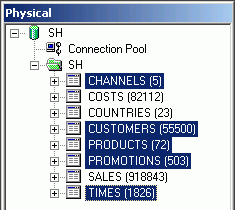
1.Select the following tables in the Physical layer. Select only these tables:
CHANNELS, CUSTOMERS, PRODUCTS, PROMOTIONS, TIMES

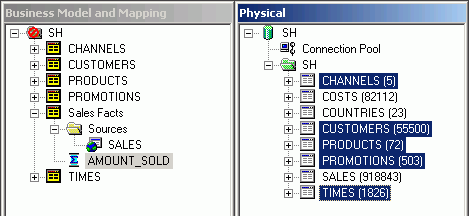
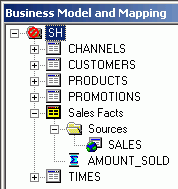
2.Drag the selected tables from the Physical layer onto the SH business model folder in the Business Model and Mapping layer. This automatically creates logical tables in the Business Model and Mapping layer. Notice that each logical table has a yellow table icon. In the Business Model and Mapping layer, this indicates a fact table. Because you have not yet created the logical joins, all table icons are yellow. The icon color for dimension tables changes to white in a later step when you create logical joins.

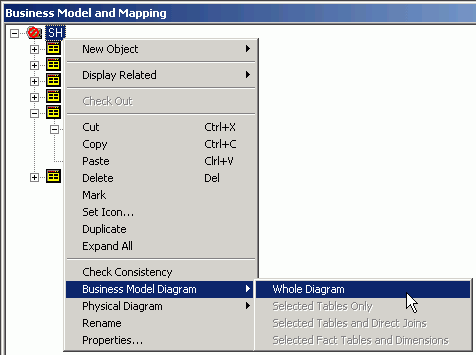
3.Right-click the SH business model and select Business Model Diagram > Whole Diagram.

4.Rearrange the table icons so they are all visible. Place the Sales Facts table in the middle. Adjust the zoom factor, if desired.

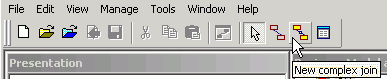
5.Click the New Complex Join button in the toolbar.

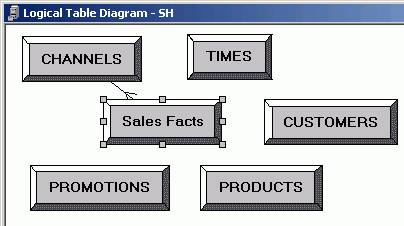
6.Click the Channels table icon first and then click the Sales Facts table icon in the Logical Table Diagram window. The order is important. The second table clicked is the many side of the relationship. The Logical Join dialog box opens. Leave the default values as they are, but note which properties you can set: name, business model, tables, driving table, join type, and cardinality. Also note which properties you cannot set: the join expression and the join columns. Typically, when defining logical joins, you leave the defaults as they are.

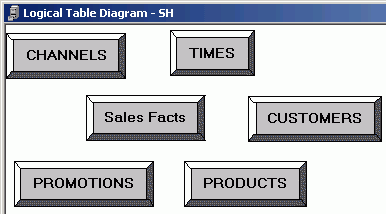
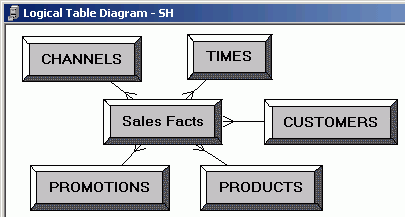
7.Do not change the default values, click OK, and verify your work in the Logical Table Diagram. Notice that the fact table, Sales Facts, is at the many end of the join:

8.Repeat the steps for the remaining tables. Your final result should look similar to the picture.

9.Click the X in the upper right corner to close the Logical Table Diagram. Notice that the color of the table icons for the dimension tables has changed to white in the business model. In a business model, a yellow icon indicates a fact table and a white icon indicates a dimension table. Defining the join relationships determined which tables are the logical dimension tables and which is the logical fact table. A fact table is always on the many side of a logical join. You now have a logical star schema consisting of one logical fact table, Sales Facts, and five logical dimension tables: Channels, Customers, Products, Promotions, and Times.

10.Save the SH repository. Do not check global consistency.

Physical Joins


Create Physical Joins

To create physical joins in the Physical layer of the repository, perform the following steps:
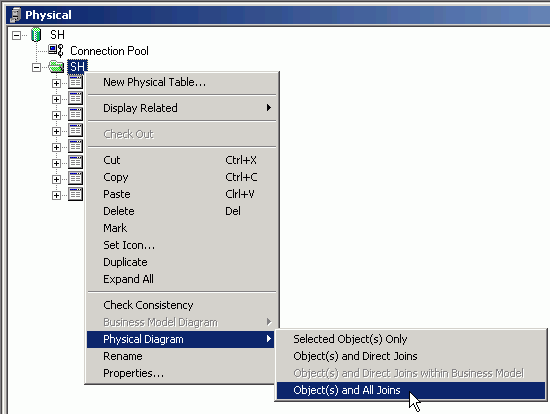
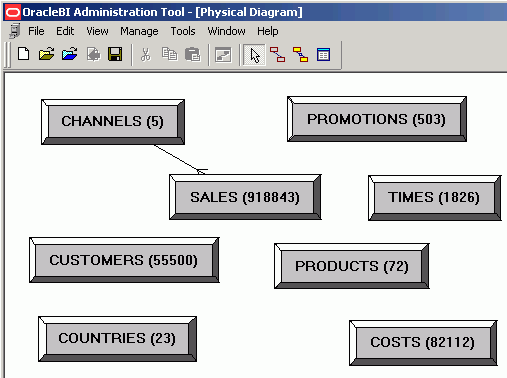
1.In the Physical layer, right-click the SH schema folder and select Physical Diagram > Object (s) and All Joins. Alternatively, you can select the SH database object and then click the Physical Diagram button on the toolbar.

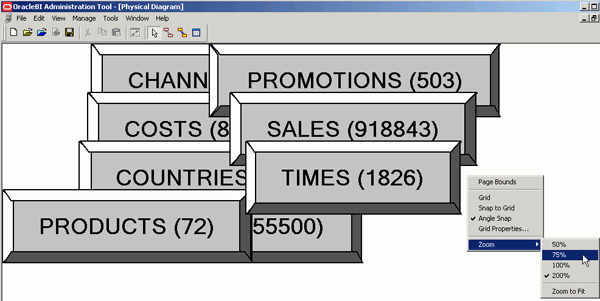
2.In the Physical Diagram, if the tables are too big, right-click in the white space, select Zoom, and adjust the size.

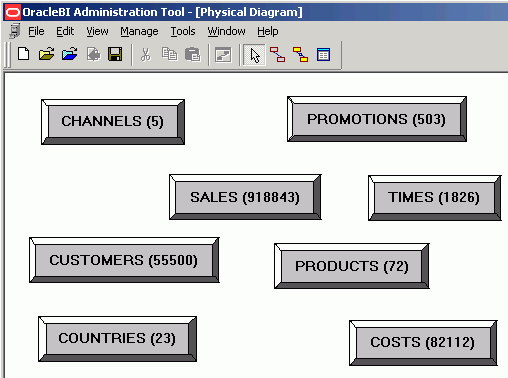
3.Rearrange the tables so they are all visible in the Physical Diagram.

4.Click the New Foreign Key button on the toolbar.

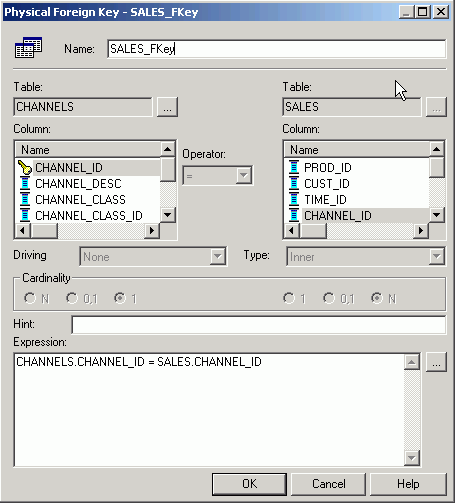
5.Click the Channels table and then the Sales table. The Physical Foreign Key dialog box opens.

It matters which table you click first. The join is creating a one-to-many (1:N) relationship that joins the key column in the first table to a foreign key column in the second table. The Administration Tool makes a best "guess" and automatically determines which columns should be included in the join.
Make sure the join expression is:
CHANNELS.CHANNEL_ID = SALES.CHANNEL_ID
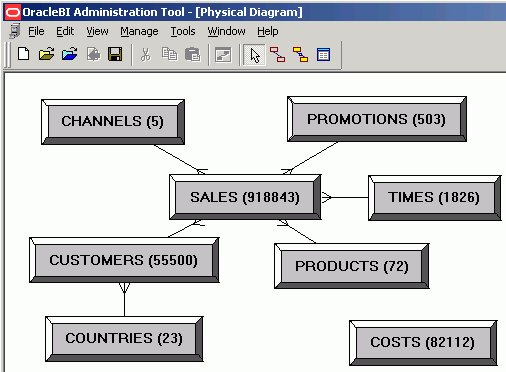
6.Click OK to close the Physical Foreign Key dialog box. The join between Channels and Sales is displayed in the Physical Diagram.

 
7.Continue to create the following joins:
PROMOTIONS.PROMO_ID = SALES.PROMO_ID
TIMES.TIME_ID = SALES.TIME_ID
PRODUCTS.PROD_ID = SALES.PROD_ID
CUSTOMERS.CUST_ID = SALES.CUST_ID
COUNTRIES.COUNTRY_ID = CUSTOMERS.COUNTRY_ID
Note that Countries joins to Customers and Costs in not joined for now. All other tables join directly to Sales.

When you are finished, click the X in the upper right corner to close the Physical Diagram.
8.Select File > Save or click the Save button on the toolbar to save the repository.
9.Click No when prompted to check global consistency. Checking Global Consistency checks for errors in the entire repository. Some of the more common checks are done in the Business Model and Mapping layer and Presentation layer. Since these layers are not defined yet, bypass this check until the other layers in the repository are built. You learn more about consistency check later in this tutorial.
10.Leave the Administration Tool and the SH repository open for the next topic.
Congratulations! You have successfully created a new repository, set up an ODBC data source, imported a table schema from an external data source into the Physical layer, and defined keys and joins.
In the next topic you learn how to build the Business Model and Mapping layer of a repository.


Defining Logical Joins with the Business Model Diagram


The Business Model Diagram shows logical tables and any defined joins between them. Logical foreign key joins may be needed if the Oracle BI Server is to be used as an ODBC data source for certain third-party query and reporting tools.
NOTE:  It is recommended that you use the Business Model Diagram to define complex joins. It is recommended that you do not use the Diagram to define logical foreign keys.
To display the Business Model Diagram
  1. In the Administration Tool, right-click a business model, and then select Business Model Diagram > Whole Diagram.
  2. Click one of the following buttons on the Administration Tool toolbar:
    • New complex join (Recommended)
    • New foreign key (Not recommended. This capability exists to provide compatibility with previous releases.)
  3. With one of the buttons selected, move the cursor to the first table in the join (the one of the one-to-many join).
  4. Left-click and move the cursor to the table to which you want to make the join (the many of the one-to-many join), and then left-click on the second table.
    The Logical Foreign Key or Logical Join dialog box appears.
  5. For a logical foreign key, select the joining columns from the left and the right tables.
  6. (Optional) To specify a driving table for the key, select a table from the Driving drop-down list, and an applicable cardinality.
    This is for use in optimizing the manner in which the Oracle BI Server processes multi-database inner joins when one table is very small and the other table is very large. Do not select a driving table unless multi-database joins are going to occur. For more information about driving tables, refer to Specifying a Driving Table.
    CAUTION:  Use extreme caution in deciding whether to specify a driving table. Driving tables are used for query optimization only under rare circumstances and when the driving table is extremely small (fewer than 1000 rows). Choosing a driving table incorrectly can lead to severe performance degradation.
  7. Select the join type from the Type drop-down list.
  8. To open the Expression Builder, click the button to the right of the Expression pane.
    Only columns, designated predicates, and operators are allowed in the expression. For more information, see Expression Builder.
  9. Click OK to save your work.  

Defining Logical Joins


Logical tables are related to each other. How they are related is expressed in logical joins. A key property of a logical join is cardinality. Cardinality expresses how rows in one table are related to rows in the table to which it is joined. A one-to-many cardinality means that for every row in the first logical dimension table there are 0, 1, or many rows in the second logical table. The Administration Tool considers a table to be a logical fact table if it is at the Many end of all logical joins that connect it to other logical tables.
Specifying the logical table joins is required so that the Oracle BI Server can have the necessary metadata to translate a logical request against the business model to SQL queries against the physical data sources. The logical join information provides the Oracle BI Server with the many-to-one relationships between the logical tables. This logical join information is used when the Oracle BI Server generates queries against the underlying databases.
The joins between the logical layer and the physical layer will be automatically created if both of the following statements are true:
  • You create the logical tables by simultaneously dragging and dropping all required physical tables to the Business Model and Mapping layer.
  • The logical joins are the same as the joins in the Physical layer.
However, you will probably have to create some logical joins in the Business Model and Mapping layer, because you will rarely drag and drop all physical tables simultaneously except in very simple models. In the Business Model and Mapping layer, you should create complex joins with one-to-many relationships and not key or foreign key joins.
You can create logical foreign keys and logical complex joins using either the Joins Manager or the Business Model Diagram. When you create a complex join in the Physical layer, you can specify expressions and the specific columns on which to create the join. When you create a complex join in the Business Model and Mapping layer, you cannot specify expressions or columns on which to create the join. The existence of a join in the Physical layer does not require a matching join in the Business Model and Mapping layer.
CAUTION:  It is recommended that you do not have foreign keys for logical tables. However, you can create logical foreign keys and logical complex joins using either the Joins Manager or the Business Model Diagram. A logical key for a fact table must be made up of the key columns that join to the attribute tables.
To create logical joins, perform the following tasks:

Defining Logical Joins with the Joins Manager


You can use the Joins Manager to view logical join relationships and to create logical foreign keys and complex joins.
This section includes the following topics:

Creating a Logical Foreign Key

Logical foreign key joins might be needed if the Oracle BI Server is to be used as an ODBC data source for certain third-party query and reporting tools. Typically, you should not create logical foreign keys. This capability is in the Administration Tool to provide compatibility with previous releases.
To create a logical foreign key
  1. In the Administration Tool toolbar, select Manage > Joins.
    The Joins Manager dialog box appears.
  2. Select Action > New > Logical Foreign Key
  3. In the Browse dialog box, double-click a table.
    The Logical Foreign Key dialog box appears.
  4. Type a name for the foreign key.
  5. In the Table drop-down list on the left side of the dialog box, select the table that the foreign key references.
  6. Select the columns in the left table that the foreign key references.
  7. Select the columns in the right table that make up the foreign key columns.
  8. (Optional) To specify a driving table for the key, select a table from the Driving drop-down list, and an applicable cardinality.
    This is for use in optimizing the manner in which the Oracle BI Server processes multi-database inner joins when one table is very small and the other table is very large. Do not select a driving table unless multi-database joins are going to occur. For more information about driving tables, refer to Specifying a Driving Table.
    CAUTION:  Use extreme caution in deciding whether to specify a driving table. Driving tables are used for query optimization only under rare circumstances and when the driving table is extremely small, that is, less than 1000 rows. Choosing a driving table incorrectly can lead to severe performance degradation.
  9. Select the join type from the Type drop-down list.
  10. To open the Expression Builder, click the button to the right of the Expression pane.
    The expression displays in the Expression pane.
  11. Click OK to save your work.

Creating a Logical Complex Join

The use of logical complex joins is recommended over logical key and foreign key joins.
To create a logical complex join
  1. In the Administration Tool toolbar, select Manage > Joins.
    The Joins Manager dialog box appears.
  2. Select Action > New > Logical Complex Join.
    The Logical Join dialog box appears.
  3. Type a name for the complex join.
  4. In the Table drop-down lists on the left and right side of the dialog box, select the tables that the complex join references.
  5. (Optional) To specify a driving table for the key, select a table from the Driving drop-down list, and an applicable cardinality.
    This is for use in optimizing the manner in which the Oracle BI Server processes multi-database inner joins when one table is very small and the other table is very large. Do not select a driving table unless multi-database joins are going to occur. For more information about driving tables, refer to Specifying a Driving Table.
    CAUTION:  Use extreme caution in deciding whether to specify a driving table. Driving tables are used for query optimization only under rare circumstances and when the driving table is extremely small, that is, less than 1000 rows. Choosing a driving table incorrectly can lead to severe performance degradation.
  6. Select the join type from the Type drop-down list.
  7. Click OK. 

Defining Physical Joins in the Physical Diagram


You can define foreign keys and complex joins between tables, whether or not the tables are in the same database. If you click the Physical diagram icon on the toolbar, the Physical Table Diagram window opens and only the selected objects appear. If you right-click a physical object, several options are available. For more information about these options, refer to Table 15.
To display the Physical Table Diagram
  1. In the Administration Tool, in the Physical layer, right-click a table and choose Physical Diagram.
  2. In the shortcut menu, choose an option from Table 15.
  3. To add another table to the Physical Table Diagram window, perform the following steps:
    1. Leave the Physical Table Diagram window open.
    2. Right-click to select a table you want to add and choose one of the Physical Diagram options described in Table 15.
      Repeat this process until all the tables you need appear in the Physical Table Diagram window.
Table 15. Physical Diagram Shortcut Menu Options
Physical Diagram Menu
Description
Object(s) and all joins
Displays the selected objects, as well as each object that is related directly or indirectly to the selected object through some join path. If all the objects in a schema are related, then using this option diagrams every table, even if you only select one table.
Object(s) and direct joins
Displays the selected objects and any tables that join to the objects that you select.
Object(s) and direct joins in the business model
Option Not available at this time.
Selected object(s) only
Displays the selected objects only. Joins display only if they exist between the objects that you select.
To define a foreign key join or a complex join
  1. In the Physical layer of the Administration Tool, select one or more tables and execute one of the Physical Diagram commands from the right-click menu.
  2. Click one of the following icons on the Administration Tool toolbar:
    • New foreign key
    • New complex join
  3. With this icon selected, in the Physical Table Diagram window, left-click the first table in the join (the table representing one in the one-to-many join) to select it.
  4. Move the cursor to the table to which you want to join (the table representing many in the one-to-many join), and then left-click the second table to select it.
    The Physical Foreign Key or Physical Join dialog box appears.
  5. Select the joining columns from the left and the right tables.
    The SQL join conditions appear in the expression pane of the window.
    NOTE:  The driving table is shown on this window, but it is not available for selection because the Oracle BI Server implements driving tables only in the Business Model and Mapping layer. For more information about driving tables, refer to Specifying a Driving Table.
  6. If appropriate, specify a database hint.
    For more information, refer to Using Database Hints.
  7. To open the Expression Builder, click the button to the right of the Expression pane.
    The expression displays in the Expression pane.
  8. Click OK to apply the selections

About Physical Joins


All valid physical joins need to be configured in the Physical layer of the Administration Tool.
NOTE:  You do not create joins for multidimensional data sources.
When you import keys in a physical schema, the primary key-foreign key joins are automatically defined. Any other joins within each database or between databases have to be explicitly defined to express relationships between tables in the physical layer.
NOTE:  Imported key and foreign key joins do not have to be used in metadata. Joins that are defined to enforce referential integrity constraints can result in incorrect joins being specified in queries. For example, joins between a multipurpose lookup table and several other tables can result in unnecessary or invalid circular joins in the SQL issued by the Oracle BI Server.

Multi-Database Joins

A multi-database join is defined as a table under one metadata database object that joins to a table under a different metadata database object. You need to specify multi-database joins to combine the data from different databases. Edit the Physical Table Diagram window to specify multi-database joins. The joins can be between tables in any databases, regardless of the database type, and are performed within the Oracle BI Server. While the Oracle BI Server has several strategies for optimizing the performance of multi-database joins, multi-database joins will be significantly slower than joins between tables within the same database. It is recommended to avoid them whenever possible. For more information about the Physical Table Diagram, refer to Defining Physical Joins in the Physical Diagram.

Fragmented Data

Fragmented data is data from a single domain that is split between multiple tables. For example, a database might store sales data for customers with last names beginning with the letter A through M in one table and last names from N through Z in another table. With fragmented tables, you need to define all of the join conditions between each fragment and all the tables it relates to. Figure 9 shows the physical joins with a fragmented sales table and a fragmented customer table where they are fragmented the same way (A through M and N through Z).
Figure 9. Fragmented Tables Example
In some cases, you might have a fragmented fact table and a fragmented dimension table, but the fragments might be across different values. In this case, you need to define all of the valid joins, as shown in Figure 10.
Figure 10. Joins for Fragmented Tables Example
TIP:   Avoid adding join conditions where they are not necessary (for example, between Sales A to M and Customer N to Z in Figure 9). Extra join conditions can cause performance degradations.

Primary Key and Foreign Key Relationships

A primary key and foreign key relationship defines a one-to-many relationship between two tables. A foreign key is a column or a set of columns in one table that references the primary key columns in another table. The primary key is defined as a column or set of columns where each value is unique and identifies a single row of the table. You can specify primary key and foreign keys in the Physical Table Diagram or by using the Keys tab and Foreign Keys tab of the Physical Table dialog box. Also refer to Defining Physical Joins in the Physical Diagram and Creating and Administering Columns and Keys in a Physical Table.

Complex Joins

In the physical layer of the repository, complex joins are joins over nonforeign key and primary key columns. When you create a complex join in the physical layer, you can specify expressions and the specific columns on which to create the join. When you create a complex join in the business model layer, you do not specify expressions.

Popular Posts